The following Open.IdentityServer quickstart provides step by step instructions for various common Open.IdentityServer scenarios. These start with the absolute basics and become more complex as they progress. We recommend that you follow them in sequence.
To see the full list, please go to Open.IdentityServer Quickstarts Overview
This first quickstart is the most basic scenario for protecting APIs using Open.IdentityServer. In this quickstart you define an API and a Client with which to access it. The client will request an access token from the Identity Server using its client ID and secret and then use the token to gain access to the API.
Source Code
As with all of these quickstarts you can find the source code for it in the Open.IdentityServer repository. The project for this quickstart is Quickstart #1: Securing an API using Client Credentials
Preparation
The Open.IdentityServer Samples from the repository are a good starting point for the quickstarts.
They will be used as a starting point for the various tutorials.
Setting up the ASP.NET Core application
First create a directory for the application - then use our one of our samples to create a basic IdentityServer setup.
The 0_IsEmpty sample contains the following files:
IdentityServer.csproj- the project file and aProperties\launchSettings.jsonfileProgram.csandStartup.cs- the main application entry pointConfig.cs- IdentityServer resources and clients configuration file
The sample already has, the basic Open.IdentityServer DI methods, logging and the appropriate nuget packages configured.
You can now use your favorite text editor to edit or view the files.
Note
The protocol used in this Sample is https and the port is set to 5001 when running on Kestrel or a random one on IISExpress. You can change that in the Properties\launchSettings.json file. For production scenarios you should always use https.
Defining an API Scope
An API is a resource in your system that you want to protect. Resource definitions can be loaded in many ways, the template you used to create the project above shows how to use a “code as configuration” approach.
The Config.cs is already created for you. Open it, update the code to look like this:
public static class Config
{
    public static IEnumerable<ApiScope> ApiScopes => [
        new ApiScope("api1", "My API")
    ];
}
(see the full file here).
Note
If you will be using this in production it is important to give your API a logical name. Developers will be using this to connect to your api though your Identity server. It should describe your api in simple terms to both developers and users.
Defining the client
The next step is to define a client application that we will use to access our new API.
For this scenario, the client will not have an interactive user, and will authenticate using the so called client secret with IdentityServer.
For this, add a client definition:
public static IEnumerable<Client> Clients => [
    new Client
    {
        ClientId = "client",

        // no interactive user, use the clientid/secret for authentication
        AllowedGrantTypes = GrantTypes.ClientCredentials,

        // secret for authentication
        ClientSecrets = { new Secret("secret".Sha256()) },

        // scopes that client has access to
        AllowedScopes = { "api1" }
    }
];
You can think of the ClientId and the ClientSecret as the login and password for your application itself. It identifies your application to the identity server so that it knows which application is trying to connect to it.
Configuring IdentityServer
Loading the resource and client definitions happens in Startup.cs - update the code to look like this:
public void ConfigureServices(IServiceCollection services)
{
    var builder = services.AddIdentityServer()
        .AddDeveloperSigningCredential()        //This is for dev only scenarios when you don’t have a certificate to use.
        .AddInMemoryApiScopes(Config.ApiScopes)
        .AddInMemoryClients(Config.Clients);

    // omitted for brevity
}
That’s it - your identity server should now be configured. If you run the server and navigate the browser to https://localhost:5001/.well-known/openid-configuration, you should see the so-called discovery document.
The discovery document is a standard endpoint in identity servers. The discovery document will be used by your clients and APIs to download the necessary configuration data.
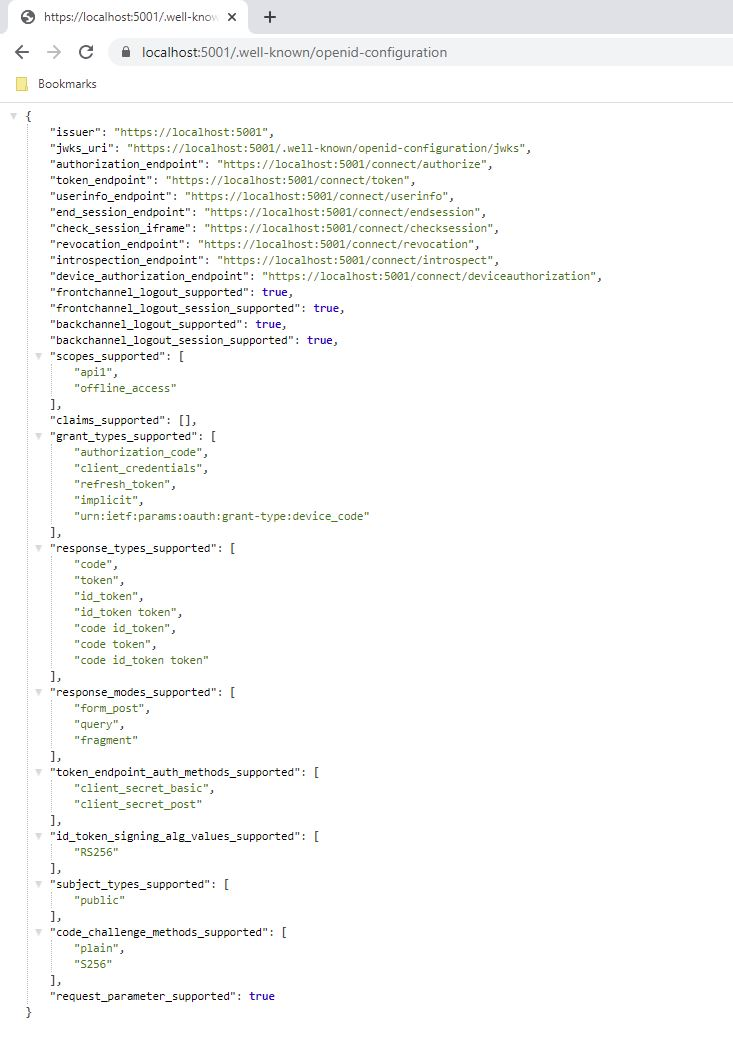
At first startup, IdentityServer will create a developer signing key for you, it’s a file called tempkey.jwk.
You don’t have to check that file into your source control, it will be re-created if it is not present.
For a production deployment you should load a certificate from a secure location and use that to sign the tokens instead of the developer signing credential.
Adding an API
Next, add an API to your solution.
You can either use the ASP.NET Core Web API template from Visual Studio or use the .NET CLI to create the API project as we do here.
Run from within the src folder the following command:
dotnet new webapi -n Api
Then add it to the solution by running the following commands:
cd ..
dotnet sln add .\src\Api\Api.csproj
Configure the API application to run on https://localhost:6001 only. You can do this by editing the launchSettings.json file inside the Properties folder. Change the application URL setting to be:
“applicationUrl”: “https://localhost:6001”
Next, add an endpoint to your API. You can do this either using a a ControllerBase class or using the new minimal API style.
Minimal API
In the Program.cs file, add the following code to create a new endpoint that will return the claims of the user that is calling the API.
app.MapGet("/identity", (ClaimsPrincipal user) =>
        from c in user.Claims select new { c.Type, c.Value })
    .RequireAuthorization();
Middleware Controllers
Add a new class called IdentityController:
Note
If you are using Controller files you will need to call services.AddControllers() in the your Program.cs or` ConfigureServices method of your Startup.cs file depending on which method you are using.
This endpoint will be used later to test the authorization requirement, as well as visualize the claims identity through the eyes of the API.
Adding a Nuget Dependency
In order for the configuration step to work the nuget package dependency has to be added, run this command in the root directory:
dotnet add .\\src\\api\\Api.csproj package Microsoft.AspNetCore.Authentication.JwtBearer
Configuration
The last step is to add the authentication services to DI (dependency injection) and the authentication middleware to the pipeline. These will:
validate the incoming token to make sure it is coming from a trusted issuer
validate that the token is valid to be used with this api (aka audience)
Update Startup or your Program.cs by adding the JWT Bearer authentication handler to you DI container.
services.AddAuthentication("Bearer")
    .AddJwtBearer("Bearer", options =>
    {
        options.Authority = "https://localhost:5001";

        options.TokenValidationParameters = new TokenValidationParameters
        {
            ValidateAudience = false
        };
    });
Then update your middleware pipeline to add the authentication and authorization middleware. This will be in your Configure method, or after builder.Build() in your Program.cs depending on which method you are using.
Minial API
app.UseAuthentication();
app.UseAuthorization();
app.run()
Middleware Controllers
AddAuthenticationadds the authentication services to DI and configuresBeareras the default scheme.AddJwtBeareradds the JWT Bearer handler to the DI container and configures it to use your IdentityServer as the authority.UseAuthenticationadds the authentication middleware to the pipeline so authentication will be performed automatically on every call into the host.UseAuthorizationadds the authorization middleware to make sure, our API endpoint cannot be accessed by anonymous clients.
Navigating to the controller https://localhost:6001/identity on a browser should return a 401 status code.
This means your API requires a credential and is now protected by IdentityServer.
Note
If you are wondering, why the above code disables audience validation, have a look here for a more in-depth discussion.
Creating the client
The last step is to write a client that requests an access token, and then uses this token to access the API. For that, add a console project to your solution, remember to create it in the src:
dotnet new console -n Client
Then as before, add it to your solution using:
cd ..
dotnet sln add .\src\Client\Client.csproj
The token endpoint implements the OAuth 2.0 protocol, and you could use raw HTTP to access it. However, it’s more convenient to use a library such as Duende.IdentityModel, that encapsulates the protocol interaction in an easy to use API.
Add the Duende.IdentityModel NuGet package to your client.
This can be done either via Visual Studio’s Nuget Package manager or dotnet CLI:
cd src
cd client
dotnet add package Duende.IdentityModel
Duende.IdentityModel includes a client library to use with the discovery endpoint. This way you only need to know the base-address of Open.IdentityServer - the actual endpoint addresses can be read from the metadata:
// discover endpoints from metadata
var client = new HttpClient();
var disco = await client.GetDiscoveryDocumentAsync("https://localhost:5001");
if (disco.IsError)
{
    Console.WriteLine(disco.Error);
    return;
}
Note
If you get an error connecting it may be that you are running https and the development certificate for localhost is not trusted. You can run dotnet dev-certs https --trust in order to trust the development certificate. This only needs to be done once.
Next you can use the information from the discovery document to request a token to IdentityServer to access api1:
// request token
var tokenResponse = await client.RequestClientCredentialsTokenAsync(new ClientCredentialsTokenRequest
{
    Address = disco.TokenEndpoint,

    ClientId = "client",
    ClientSecret = "secret",
    Scope = "api1"
});

if (tokenResponse.IsError)
{
    Console.WriteLine(tokenResponse.Error);
    return;
}

Console.WriteLine(tokenResponse.Json);
(full file can be found here)
Note
Copy and paste the access token from the console to jwt.ms to inspect the raw token.
Calling the API
To send the access token to the API you typically use the HTTP Authorization header. This is done using the SetBearerToken extension method:
// call api
var apiClient = new HttpClient();
apiClient.SetBearerToken(tokenResponse.AccessToken);

var response = await apiClient.GetAsync("https://localhost:6001/identity");
if (!response.IsSuccessStatusCode)
{
    Console.WriteLine(response.StatusCode);
}
else
{
    var content = await response.Content.ReadAsStringAsync();
    Console.WriteLine(JsonNode.Parse(content));
}
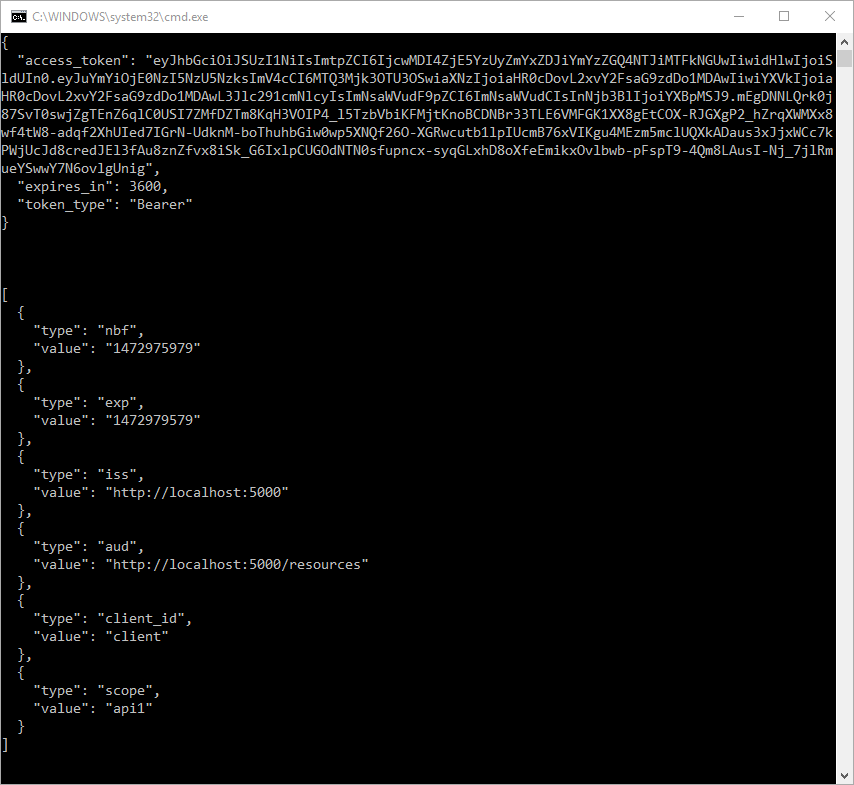
(If you are in Visual Studio you can right-click on the solution and select “Multiple Startup Projects”, and ensure the Api and IdentityServer will start; then run the solution; then, to step through the Client code, you can right-click on the “Client” project and select Debug… Start New Instance). The output should look like this:
Note
By default an access token will contain claims about the scope, lifetime (nbf and exp), the client ID (client_id) and the issuer name (iss).
Further experiments
This walkthrough focused on the success path so far
client was able to request token
client could use the token to access the API
You can now try to provoke errors to learn how the system behaves, e.g.
try to connect to IdentityServer when it is not running (unavailable)
try to use an invalid client id or secret to request the token
try to ask for an invalid scope during the token request
try to call the API when it is not running (unavailable)
don’t send the token to the API
configure the API to require a different scope than the one in the token