This guide brings the SharePoint WS-Federation integration walkthrough into our product documentation and updates it for current IdentityServer options.
It covers both:
- Duende IdentityServer with
Rsk.WsFederation.DuendeIdentityServer - Open.IdentityServer with
Rsk.WsFederation.OpenIdentityServer
Overview
SharePoint can use WS-Federation as an external identity protocol. With the WS-Federation component, your IdentityServer instance can act as the identity provider (IdP) and SharePoint can trust it using a SAML token-signing certificate.
At a high level, you will:
- Configure IdentityServer for WS-Federation
- Add a WS-Federation client and relying party settings
- Export and trust the signing certificate in SharePoint
- Register IdentityServer as a trusted token issuer in SharePoint
- Enable the new authentication provider on your web app
1) Add the WS-Federation component
Install the package that matches your IdentityServer runtime.
dotnet add package Rsk.WsFederation.DuendeIdentityServer
dotnet add package Rsk.WsFederation.OpenIdentityServer
2) Configure IdentityServer
Add the WS-Federation plugin and configure your license key.
using Duende.IdentityServer;

services.AddIdentityServer()
    // Existing IdentityServer registrations
    .AddSigningCredential(new X509Certificate2("idsrv-signing.pfx", "password"))
    .AddWsFederationPlugin(options =>
    {
        options.Licensee = "DEMO";
        options.LicenseKey = "your license key";
    })
    .AddInMemoryRelyingParties(GetRelyingParties());
Enable middleware in your request pipeline:
app.UseIdentityServer()
   .UseIdentityServerWsFederationPlugin();
3) Add SharePoint as a WS-Federation client
Create a client for SharePoint where the ClientId is the expected WS-Federation realm, and the redirect URI matches SharePoint's WS-Federation callback endpoint.
new Client
{
    ClientId = "urn:sharepoint:portal",
    ProtocolType = IdentityServerConstants.ProtocolTypes.WsFederation,
    RedirectUris = { "https://sharepoint.contoso.com/_trust/" },
    PostLogoutRedirectUris = { "https://sharepoint.contoso.com/" },
    AllowedScopes = { "openid", "profile" }
};
Add relying party settings so claim names align with what SharePoint expects:
new RelyingParty
{
    Realm = "urn:sharepoint:portal",
    TokenType = WsFederationConstants.TokenTypes.Saml11TokenProfile11,
    ClaimMapping = new Dictionary<string, string>
    {
        { JwtClaimTypes.Name, ClaimTypes.Name },
        { JwtClaimTypes.Email, ClaimTypes.Email },
        { JwtClaimTypes.Role, ClaimTypes.Role }
    }
};
4) Get the WS-Federation metadata and signing certificate
By default, metadata is available at:
https://{identityserver-host}/wsfed
From metadata, identify your signing certificate and export it as a .cer file for SharePoint trust setup.
5) Register IdentityServer in SharePoint as a trusted token issuer
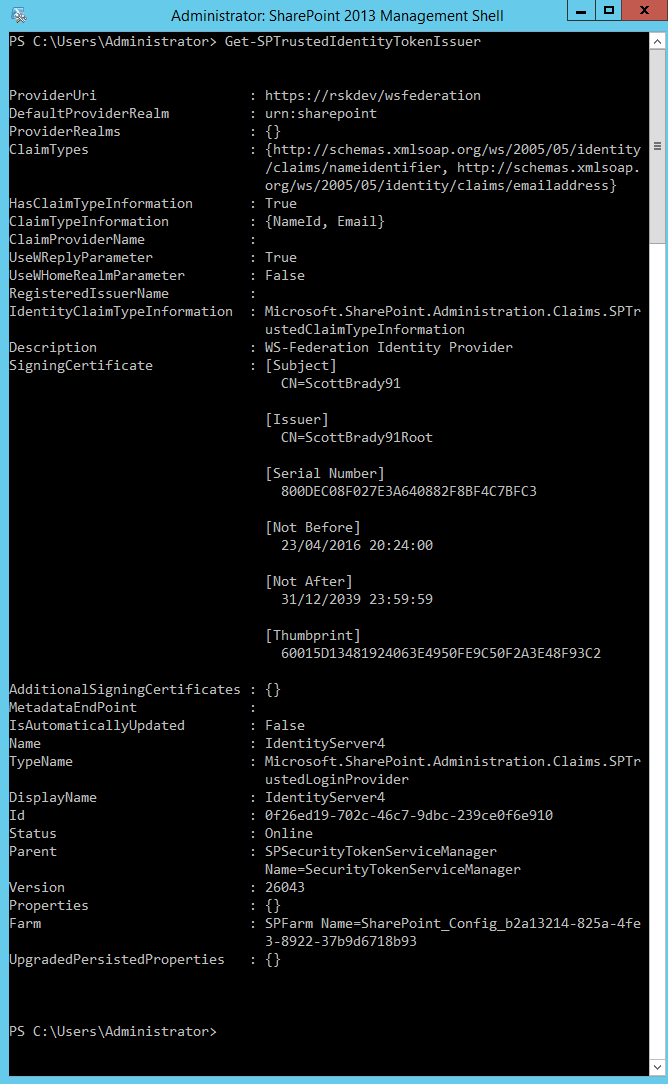
In SharePoint Management Shell (run as administrator), register the token issuer and map incoming claims.
$realm = "urn:sharepoint:portal"
$signInUrl = "https://idsrv.contoso.com/wsfed"
$cert = New-Object System.Security.Cryptography.X509Certificates.X509Certificate2("C:\certs\idsrv-signing.cer")

$mapEmail = New-SPClaimTypeMapping -IncomingClaimType "http://schemas.xmlsoap.org/ws/2005/05/identity/claims/emailaddress" -IncomingClaimTypeDisplayName "Email" -LocalClaimType "http://schemas.xmlsoap.org/ws/2005/05/identity/claims/emailaddress"
$mapName = New-SPClaimTypeMapping -IncomingClaimType "http://schemas.xmlsoap.org/ws/2005/05/identity/claims/name" -IncomingClaimTypeDisplayName "Name" -LocalClaimType "http://schemas.xmlsoap.org/ws/2005/05/identity/claims/name"

New-SPTrustedIdentityTokenIssuer -Name "IdentityServer" -Description "IdentityServer WS-Federation" -Realm $realm -ImportTrustCertificate $cert -ClaimsMappings $mapEmail,$mapName -SignInUrl $signInUrl -IdentifierClaim "http://schemas.xmlsoap.org/ws/2005/05/identity/claims/emailaddress"
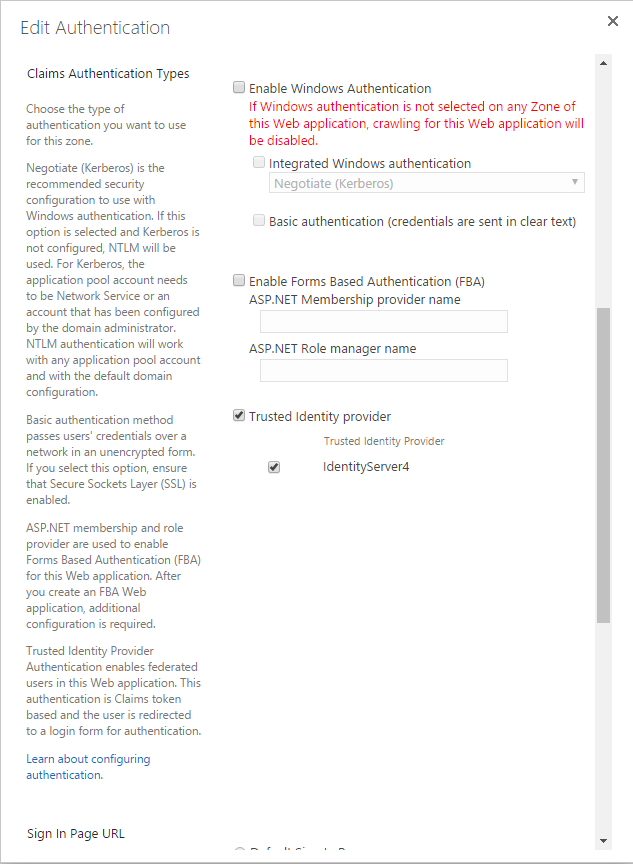
Then enable the trusted provider on your target web application authentication settings.
6) Validate the login flow
- Browse to SharePoint.
- Choose the new trusted identity provider.
- Authenticate at IdentityServer.
- Confirm you return to SharePoint as an authenticated user.
If login succeeds but authorization fails, verify SharePoint permissions and the emitted claim values (especially identifier/email/role).
Troubleshooting
- Audience/realm mismatch: ensure SharePoint realm and IdentityServer
ClientId/RelyingParty.Realmare identical. - Reply URL mismatch: ensure
wreplymaps toRedirectUris. - Certificate errors: ensure SharePoint trusts the same certificate currently used by IdentityServer token signing.
- Missing claims: ensure claim mappings in
RelyingParty.ClaimMappingand SharePoint claim mappings are aligned.